

.png)
Smarter, faster development with AI prompts, MCP protocol, and CloudBase.
🌍 Languages: 中文 | English








Turn your ideas into deployable full-stack applications with just a prompt. Works seamlessly with Cursor, VSCode GitHub Copilot, WindSurf, CodeBuddy and other AI IDEs, automatically generating and deploying web apps, mini-programs, and backend services to Tencent CloudBase.

🤖 AI-Powered Development: AI auto-generates code and architecture
☁️ Cloud Integration: One-click access to database, cloud functions, static hosting
⚡ Rapid Deployment: Full-stack apps online in minutes
Web Apps: Modern frontend + static hosting
WeChat Mini-Programs: Cloud-native mini-program solutions
Backend Services: Cloud database + serverless functions + cloud hosting
Full Video Demo
https://github.com/user-attachments/assets/2b402fa6-c5c4-495a-b85b-f5d4a25daa4a
| Feature | Description | Advantage |
|---|---|---|
| 🤖 AI-Native | Rule library designed for AI programming tools | Code follows CloudBase best practices |
| 🚀 One-Click Deploy | MCP automated deployment to Tencent CloudBase | Serverless, no server management |
| 📱 Full-Stack Support | Web + Mini-programs + Database + Backend | Supports various app types, backend hosting, and database |
| 🔧 Smart Debugging | AI reviews logs and fixes issues | Lower ops cost |
| ⚡ Lightning Fast | China CDN acceleration | Faster than overseas platforms |
| 📚 Smart Knowledge Base | Built-in vector search for CloudBase, WeChat Mini-Program docs |
Such as Cursor | WindSurf | CodeBuddy etc.
- Visit Tencent CloudBase Console to create an environment. New users can start for free.
- Get your Environment ID from the "Overview" page in the console (needed for deployment)
We provide templates with CloudBase best practices and AI IDE rules. Two recommended ways:
Choose a template and initialize with one click:
-
React Web App + CloudBase Template
Download Package | Source Code -
WeChat Mini-Program + CloudBase Template
Download Package | Source Code -
AI Rules Universal CloudBase Template: Language and framework agnostic, includes CloudBase AI rules and MCP, suitable for any CloudBase project
If you already have a project, after configuring MCP, just tell the AI "Download CloudBase AI rules in the current project" to instantly add and configure AI editor rules in your project directory—no manual steps needed.
💡 Tip: If you enable auto-run in tools like Cursor, add sensitive commands to the "Command denylist" to avoid accidental execution (e.g., data deletion). By default, manual confirmation is required for safety.
Supported tools:
| Tool | Platform |
|---|---|
| Cursor | Standalone IDE |
| WindSurf | Standalone IDE, VSCode, JetBrains plugin |
| CodeBuddy | VS Code, JetBrains, WeChat DevTools plugin |
| CLINE | VS Code plugin |
| GitHub Copilot | VS Code plugin |
| Trae | Standalone IDE |
| Tongyi Lingma | Standalone IDE, VS Code, JetBrains plugin |
| RooCode | VS Code plugin |
| Baidu Comate | VS Code, JetBrains plugin |
Follow the configuration guide for your tool below. Each tool requires your CloudBase environment ID for MCP features. If you don't have an environment, create one first.
🔧 Cursor Configuration
Templates include .cursor/rules/ directory, AI will auto-detect CloudBase best practices.
Templates include MCP config. If not using a template, click below to install in Cursor:

- Edit
.cursor/mcp.jsonin your project, set your CloudBase environment ID:
{
  "mcpServers": {
    "cloudbase-mcp": {
      "command": "npx",
      "args": ["-y", "@cloudbase/cloudbase-mcp@latest"],
      "env": {
        "CLOUDBASE_ENV_ID": "your-cloudbase-env-id"
      }
    }
  }
}
- Enable CloudBase MCP Server
Click the ⚙️ icon in Cursor, go to "MCP", find cloudbase and enable it.
Use Agent mode in chat for code generation and automation.
🌊 Codeium/WindSurf Configuration
Templates include .windsurf/ directory with WindSurf-optimized configurations.
Click WindSurf's Plugins icon, click "View raw config", add cloudbase-mcp and set environment ID
{
  "mcpServers": {
    "cloudbase-mcp": {
      "command": "npx",
      "args": ["-y", "@cloudbase/cloudbase-mcp@latest"],
      "env": {
        "CLOUDBASE_ENV_ID": "your-cloudbase-env-id"
      }
    }
  }
}
Switch to Write mode in chat for intelligent generation.
👥 CodeBuddy Configuration
Templates include .rules/ directory, CodeBuddy will automatically recognize CloudBase best practices.
Click the MCP icon in the top-right corner of CodeBuddy, then click the + button to modify MCP configuration.
Set CLOUDBASE_ENV_ID to your CloudBase environment ID
{
  "mcpServers": {
    "cloudbase-mcp": {
      "command": "npx",
      "args": ["-y", "@cloudbase/cloudbase-mcp@latest"],
      "env": {
        "CLOUDBASE_ENV_ID": "your-cloudbase-env-id"
      }
    }
  }
}
Switch to Craft mode in the chat window for intelligent project generation.
Note: In CodeBuddy's Craft mode, disable the confirmation plan feature in the right-side settings for better tool execution.
🤖 CLINE Configuration
Templates include .clinerules/ directory, AI will automatically recognize CloudBase best practices.
Find the MCP Server icon in Cline's panel, click the ⚙️ settings icon, then click Configure MCP Servers
Add the following content, replace CLOUDBASE_ENV_ID with your CloudBase environment ID
{
  "mcpServers": {
    "cloudbase": {
      "autoApprove": [],
      "timeout": 60,
      "command": "npx",
      "args": [
        "@cloudbase/cloudbase-mcp@latest"
      ],
      "env": {
        "CLOUDBASE_ENV_ID": "your-cloudbase-env-id"
      },
      "transportType": "stdio",
      "disabled": false
    }
  }
}
Return to the chat interface, recommend using models with good code generation capabilities and function call support.
🐙 GitHub Copilot Configuration
Templates include .github/ directory with Copilot-optimized configurations.
Templates include .vscode/mcp.json with CloudBase MCP configuration
Modify the environment ID to your CloudBase environment ID
{
    "servers": {
        "cloudbase": {
            "command": "npx",
            "args": [
                "@cloudbase/cloudbase-mcp@latest"
            ],
            "env": {
                "CLOUDBASE_ENV_ID": "your-cloudbase-env-id"
            }
        }
    }
}
Switch to Agent mode in the bottom-left corner of the chat window.
🎯 Trae Configuration
This guide supports both Trae International and Trae CN versions. Recommend using Claude/DeepSeek V3 0324 models for testing.
Templates include .trae/rules directory with Trae-specific CloudBase rule configurations that AI will auto-apply.
Click the ⚙️ settings icon in Trae's top-right corner, enter MCP, click manual configuration in settings, and paste the following:
Replace CLOUDBASE_ENV_ID with your CloudBase environment ID
{
  "mcpServers": {
    "cloudbase-mcp": {
      "command": "npx",
      "args": ["-y", "@cloudbase/cloudbase-mcp@latest"],
      "env": {
        "CLOUDBASE_ENV_ID": "your-cloudbase-env-id"
      }
    }
  }
}
Return to chat window, select Builder with MCP in agents.
🧩 Tongyi Lingma Configuration
Templates include .lingma/ directory, Tongyi Lingma will automatically recognize CloudBase best practices.
Click your avatar in Tongyi Lingma's top-right corner, select personal settings, enter MCP settings.
Click the open configuration file button on the right, modify MCP configuration in the opened file.
Set CLOUDBASE_ENV_ID to your CloudBase environment ID
{
  "mcpServers": {
    "cloudbase-mcp": {
      "command": "npx",
      "args": ["-y", "@cloudbase/cloudbase-mcp@latest"],
      "env": {
        "CLOUDBASE_ENV_ID": "your-cloudbase-env-id"
      }
    }
  }
}
Switch to agent mode in the bottom-left corner of the chat window.
Make sure AI is connected to CloudBase:
Query current CloudBase environment info
Describe your needs to the AI, e.g.:
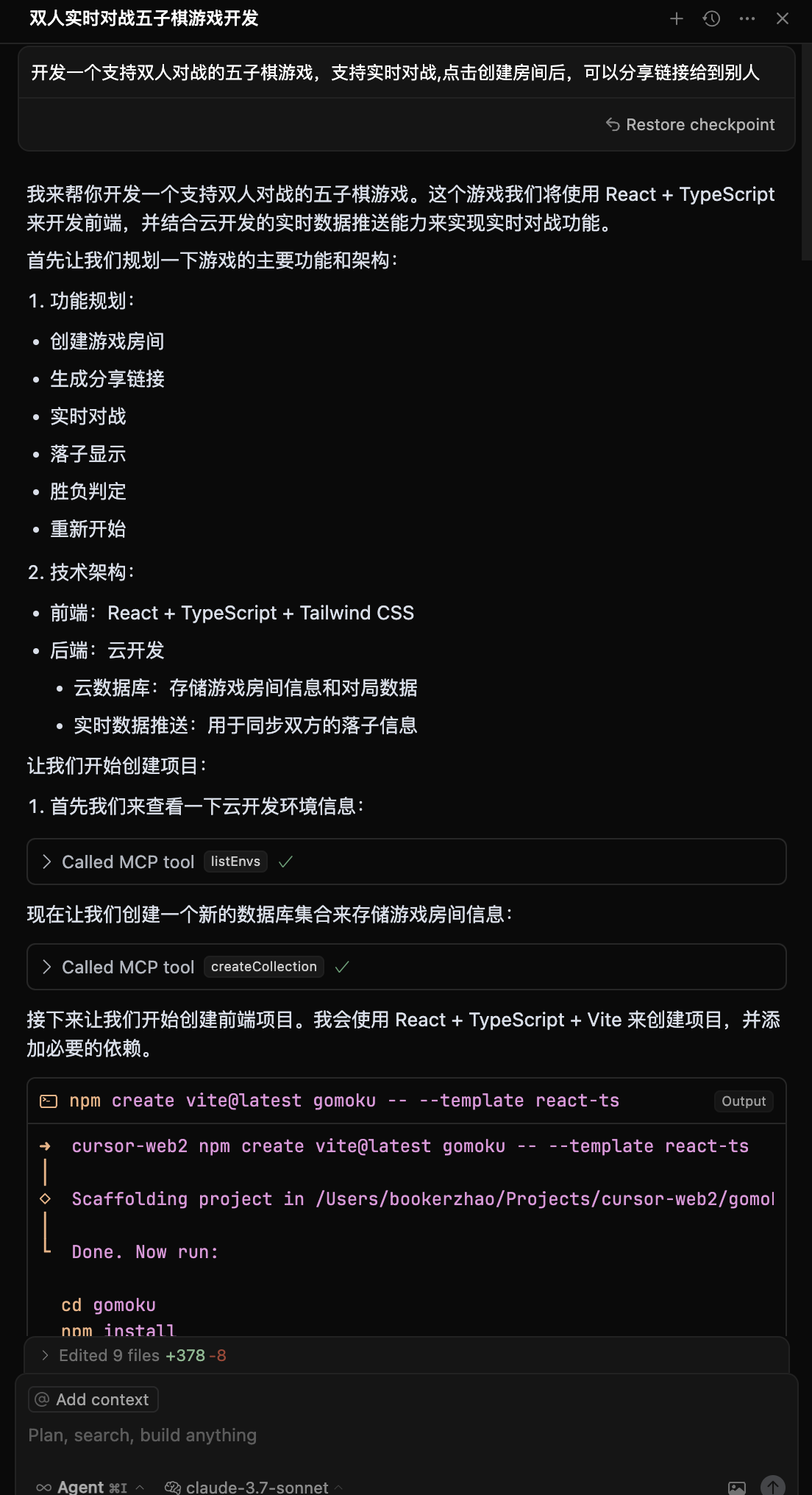
Build a two-player online Gomoku game, support online battle, then deploy
AI will automatically:
- 📝 Generate frontend & backend code
- 🚀 Deploy to CloudBase
- 🔗 Return online access link
If you encounter errors, send the error message to AI for troubleshooting:
Error: xxxx
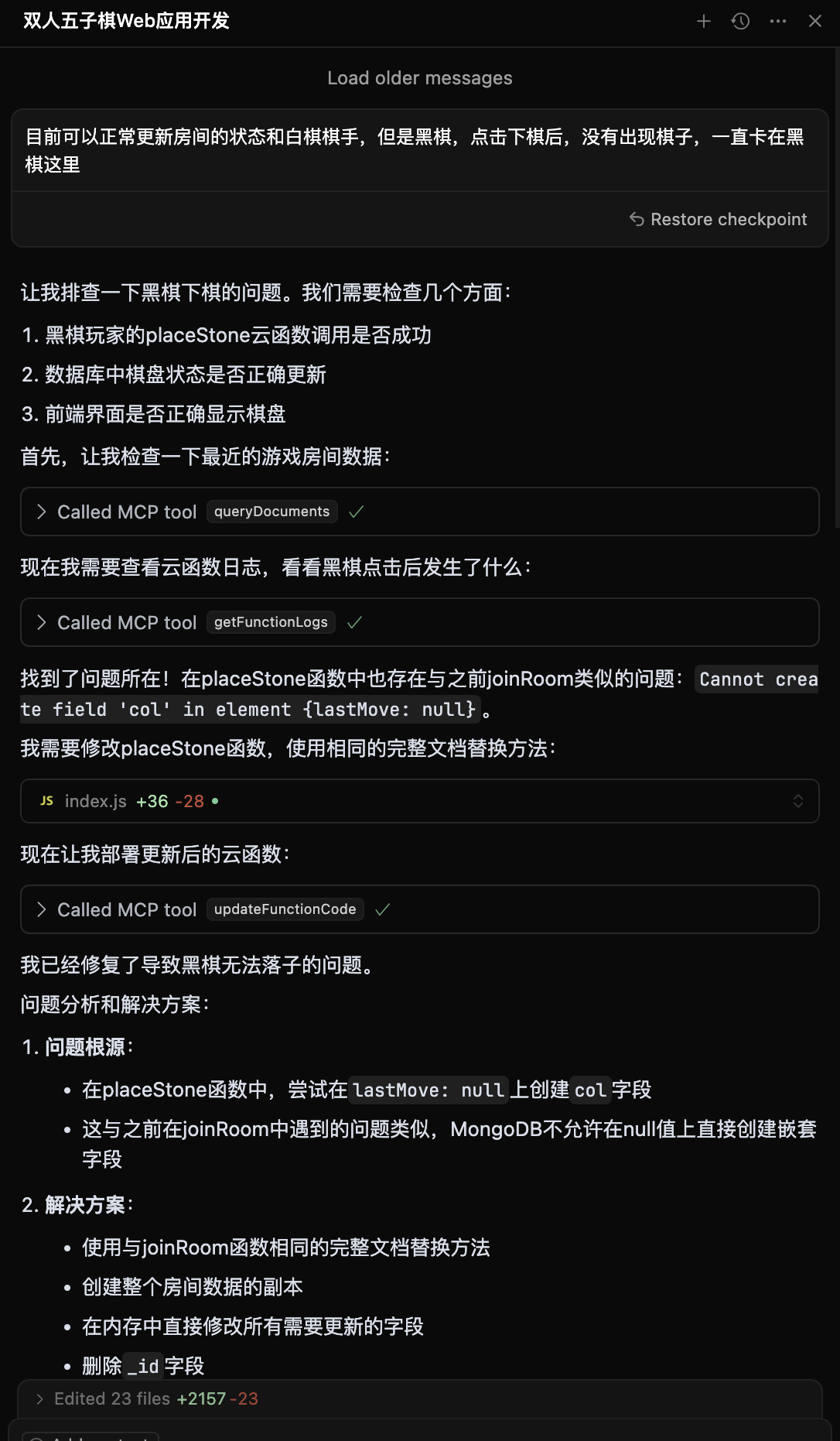
You can also ask AI to debug and modify code using cloud function logs:
Cloud function code doesn't meet requirements: xxx. Please check logs and data, debug and fix.
Process:
- Input: "Build a two-player online Gomoku game, support online battle"
- AI generates: Web app + cloud database + real-time data push
- Auto-deploy and get access link
👉 Try it: Gomoku Game
📸 See development screenshots
| Development | Final Result |
|---|---|
 | 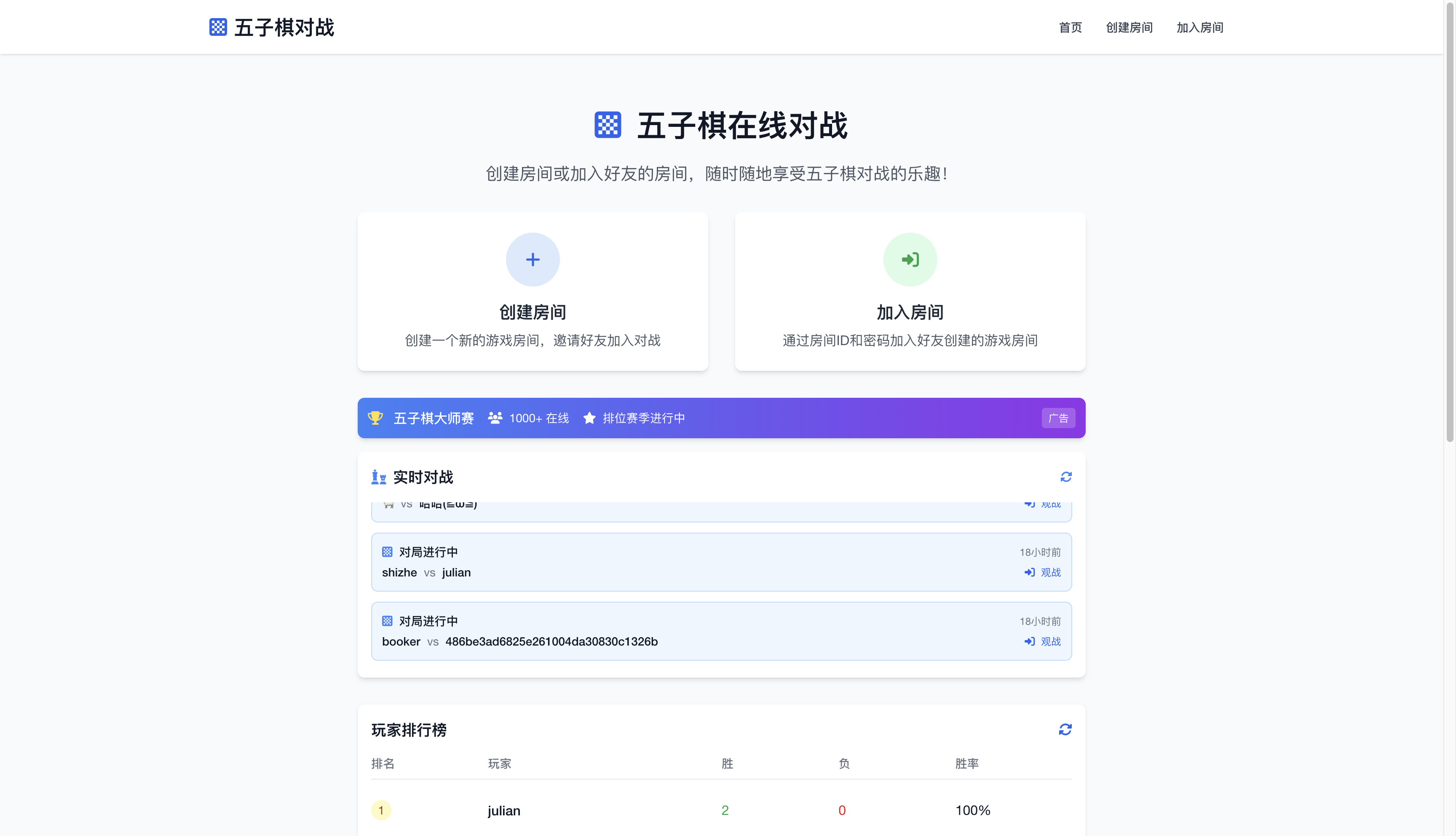 |
 | Supports two-player online battle Real-time board sync |
Process:
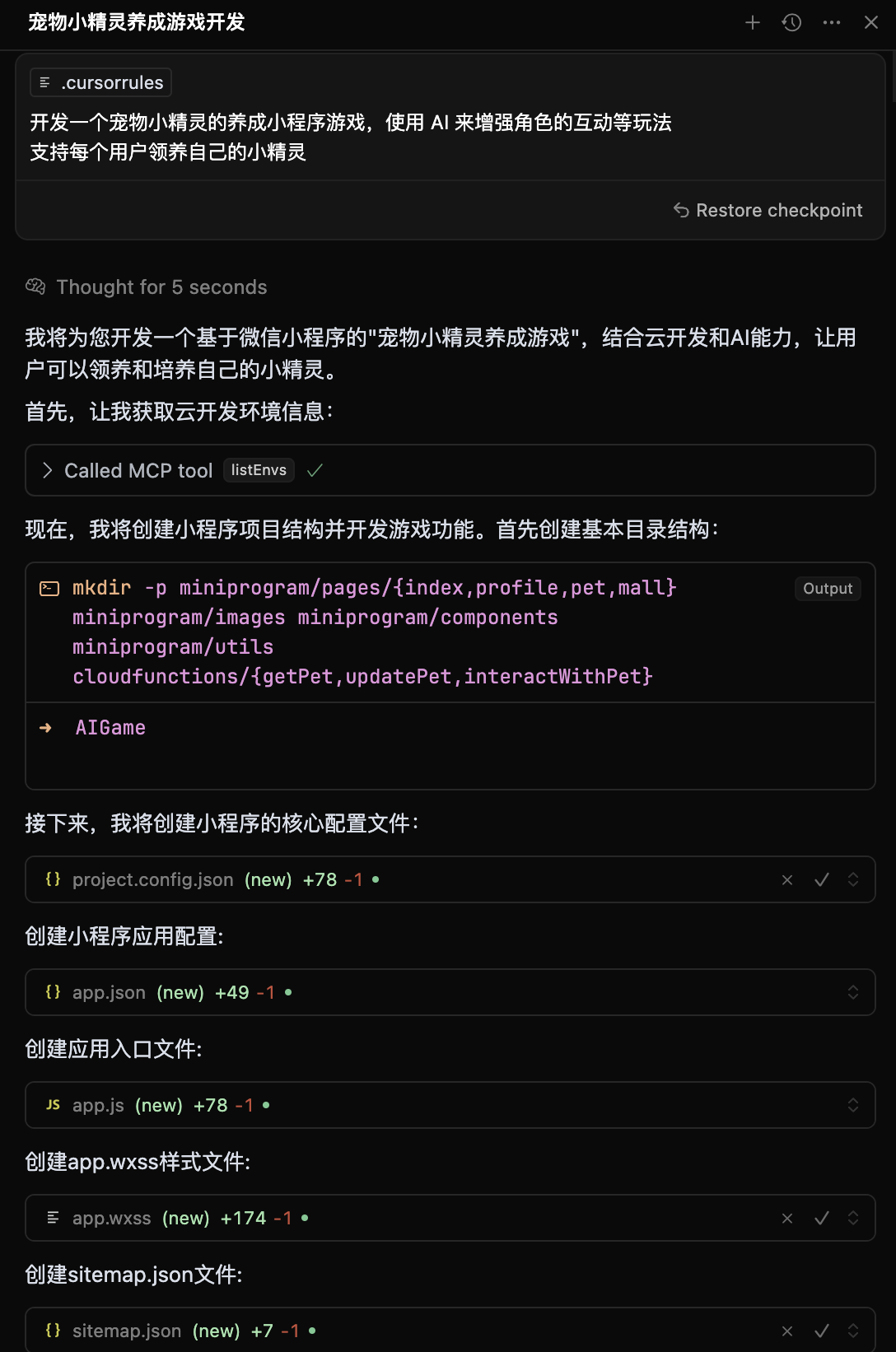
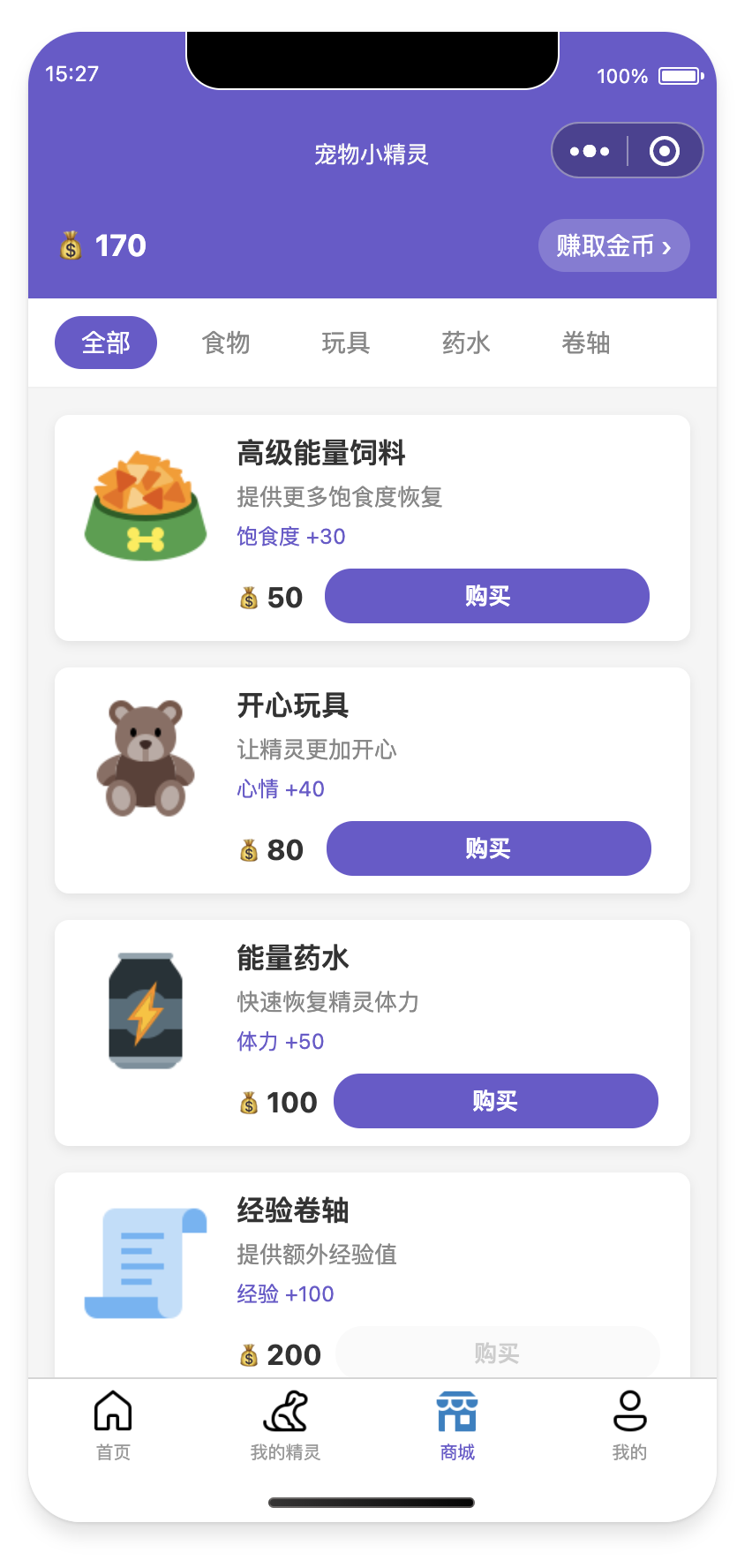
- Input: "Build a pet-raising mini-program, use AI for enhanced interaction"
- AI generates: Mini-program + cloud database + AI cloud function
- Import to WeChat DevTools to publish
📸 See dev screenshots & preview
🖥️ Dev Screenshots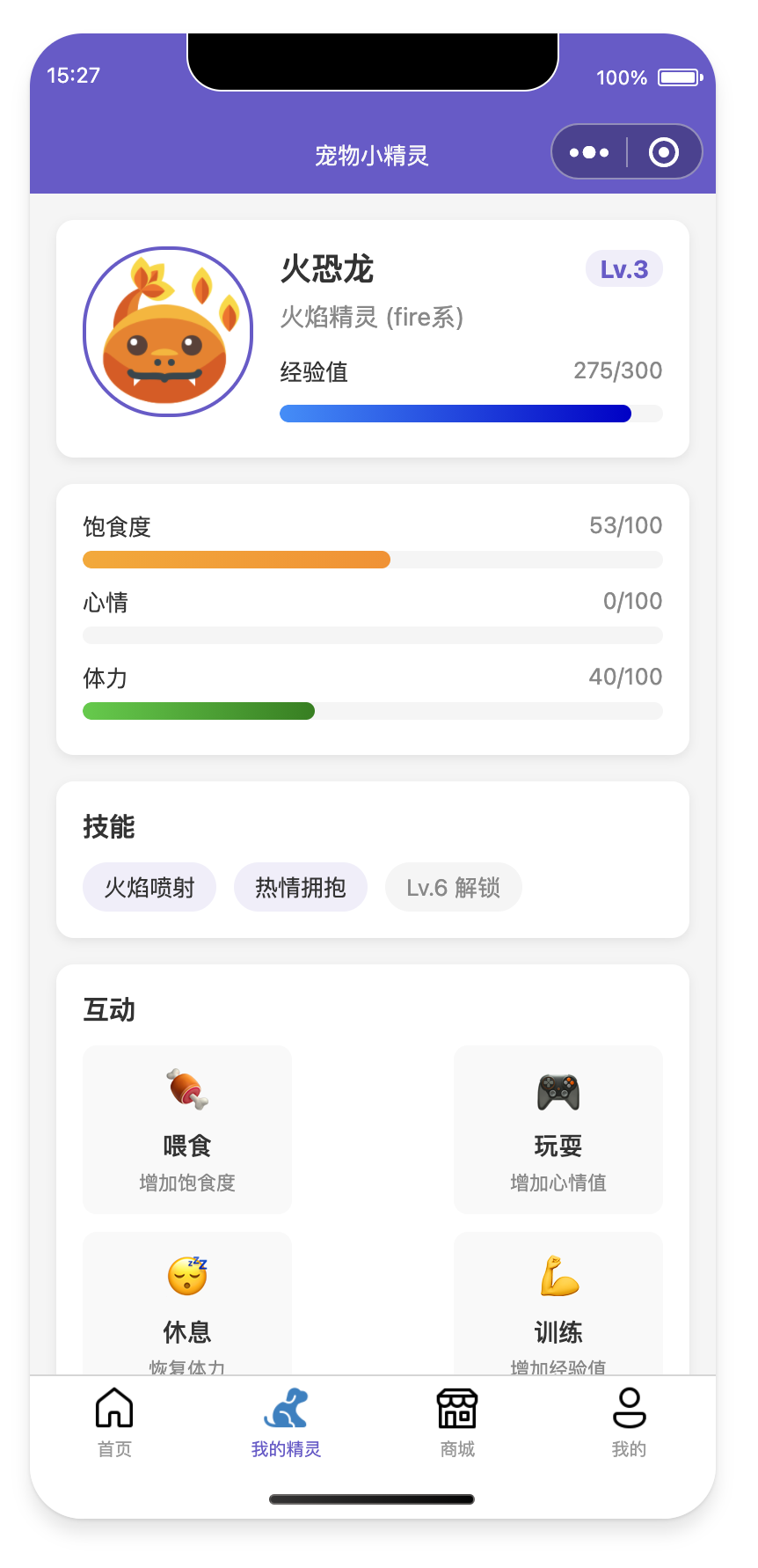
|
📱 Mini-Program Preview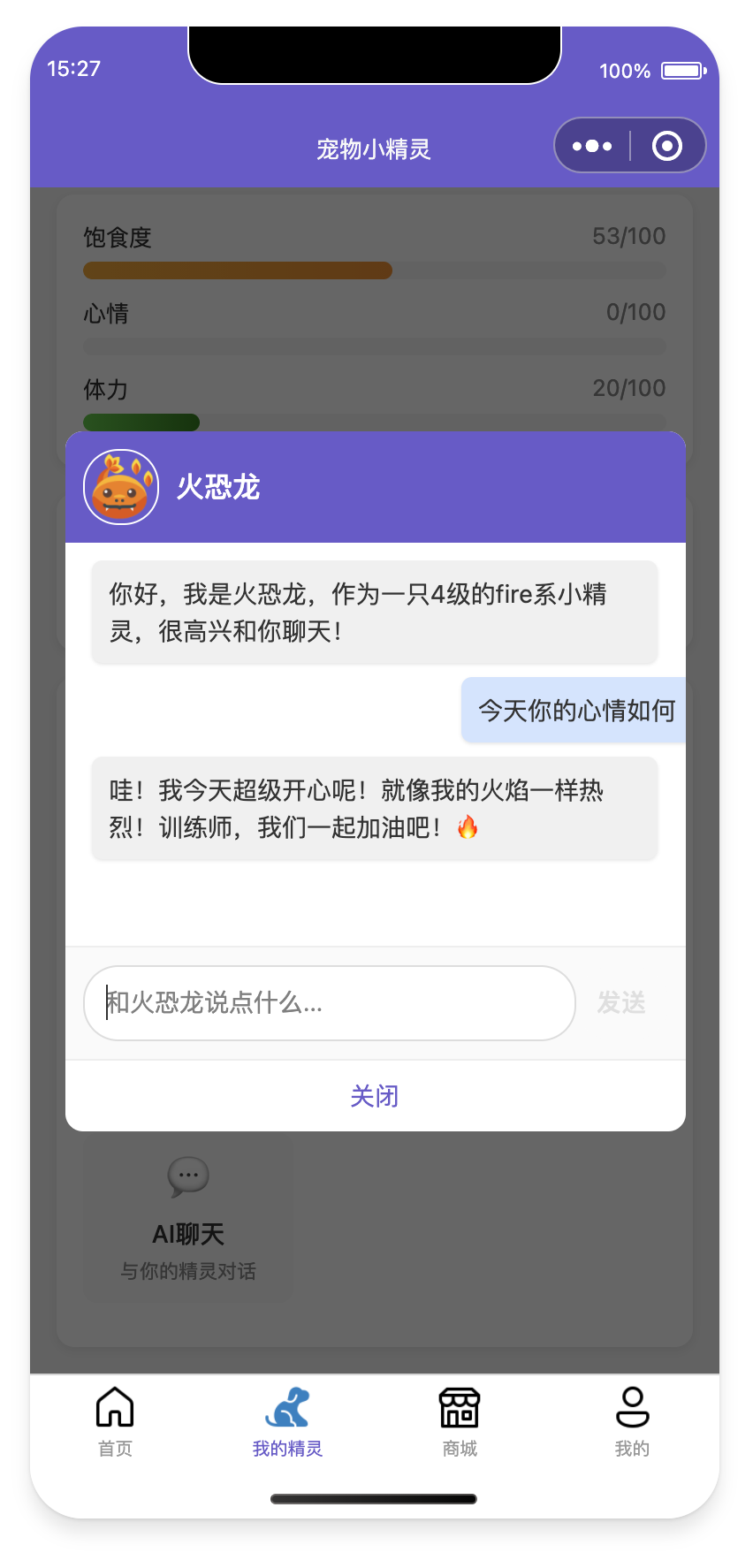
📲 Experience QR Code 
|
When issues occur:
- AI checks cloud function logs
- Analyzes errors and generates fix code
- Auto-redeploys
📸 See smart diagnosis process
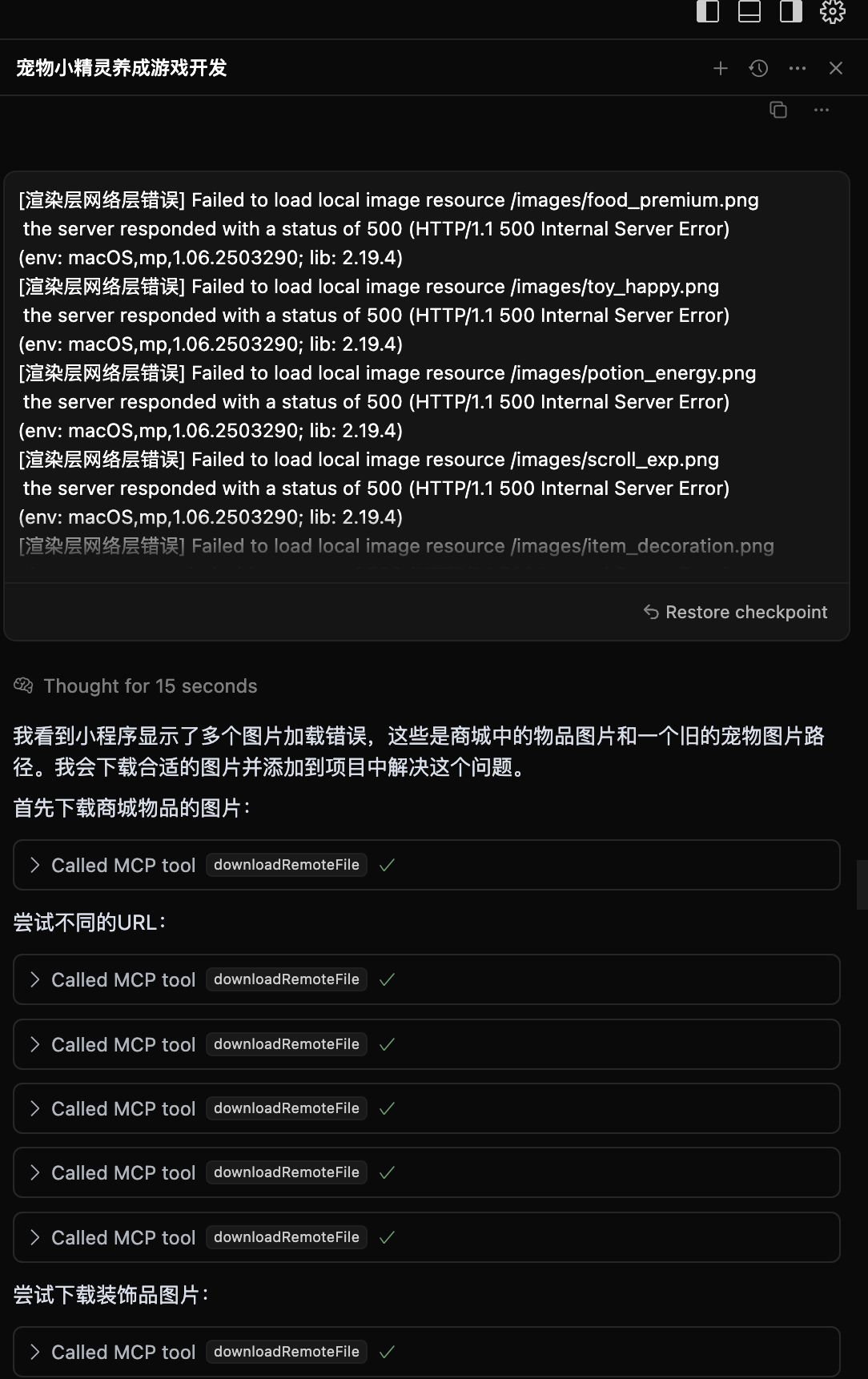
AI auto-analyzes logs and generates fixes
- ⚡ Fast Deployment: China nodes, faster than overseas
- 🛡️ Reliable: Trusted by 3.3M+ developers
- 🔧 Dev-Friendly: Full-stack platform for the AI era
- 💰 Cost-Effective: Serverless, free for new users during development
For migration, integration, and more, see FAQ.
Need help or want to connect? Join our tech community!

Scan to join the WeChat tech group
In the group you can:
- 💡 Share your AI + CloudBase projects
- 🤝 Tech exchange and Q&A
- 📢 Get latest updates and best practices
- 🎯 Join product discussions and suggestions
| Platform | Link | Description |
|---|---|---|
| Docs | 📖 Docs | Full CloudBase docs |
| Issue | 🐛 Submit Issue | Bug reports & feature requests |
- Weekly Tech Sharing: Best practices for AI + CloudBase
- Project Showcases: Share your AI-powered projects
- Q&A: Tencent CloudBase team online support
- Feature Previews: Try new features first
| Tool | Description |
|---|---|
| logout | Log out current CloudBase account |
| downloadTemplate | Download CloudBase project templates (React, Mini-Program, AI editor config, etc.) |
| listEnvs | Get all CloudBase environments |
| getEnvAuthDomains | Get valid domain list for environment |
| createEnvDomain | Add safe domain to environment |
| deleteEnvDomain | Remove domain from environment |
| getEnvInfo | Get current environment info |
| updateEnvInfo | Update environment alias |
| createCollection | Create new DB collection |
| checkCollectionExists | Check if DB collection exists |
| updateCollection | Update DB collection config (create/delete index) |
| describeCollection | Get DB collection details |
| listCollections | List DB collections |
| checkIndexExists | Check if index exists |
| distribution | Query data distribution in collection |
| insertDocuments | Insert docs into collection |
| queryDocuments | Query docs in collection |
| updateDocuments | Update docs in collection |
| deleteDocuments | Delete docs in collection |
| uploadFiles | Upload files to static hosting |
| listFiles | List static hosting files |
| deleteFiles | Delete static hosting files/folders |
| findFiles | Search static hosting files |
| createHostingDomain | Bind custom domain |
| deleteHostingDomain | Unbind custom domain |
| getWebsiteConfig | Get static website config |
| tcbCheckResource | Get domain config |
| tcbModifyAttribute | Modify domain config |
| getFunctionList | Get cloud function list |
| createFunction | Create cloud function |
| updateFunctionCode | Update cloud function code |
| updateFunctionConfig | Update cloud function config |
| getFunctionDetail | Get cloud function details |
| invokeFunction | Invoke cloud function |
| getFunctionLogs | Get cloud function logs |
| createFunctionTriggers | Create function trigger |
| deleteFunctionTrigger | Delete function trigger |
| downloadRemoteFile | Download remote file to local temp |
| uploadFile | Upload file to cloud storage (for business data) |
| searchKnowledgeBase | Smart search for CloudBase knowledge base (vector search for docs/answers) |
PRs and issues welcome! See our Contributing Guide for how to get involved.
MIT © TencentCloudBase
⭐ If you find this project helpful, please give us a Star!
