














Your Personal AI Assistant; easy to install, deploy on your own machine or on the cloud; supports multiple chat apps with easily extensible capabilities.
Core capabilities:
Every channel — DingTalk, Feishu, QQ, Discord, iMessage, and more. One assistant, connect as you need.
Under your control — Memory and personalization under your control. Deploy locally or in the cloud; scheduled reminders to any channel.
Skills — Built-in cron; custom skills in your workspace, auto-loaded. No lock-in.
What you can do
- Social: daily digest of hot posts (Xiaohongshu, Zhihu, Reddit), Bilibili/YouTube summaries.
- Productivity: newsletter digests to DingTalk/Feishu/QQ, contacts from email/calendar.
- Creative: describe your goal, run overnight, get a draft next day.
- Research: track tech/AI news, personal knowledge base.
- Desktop: organize files, read/summarize docs, request files in chat.
- Explore: combine Skills and cron into your own agentic app.
Recommended reading:
- I want to run CoPaw in 3 commands: Quick Start → open Console in browser.
- I want to chat in DingTalk / Feishu / QQ: Quick Start → Channels.
- I don’t want to install Python: One-line install handles Python automatically, or use ModelScope one-click for cloud.
If you prefer managing Python yourself:
pip install copaw
copaw init --defaults
copaw app
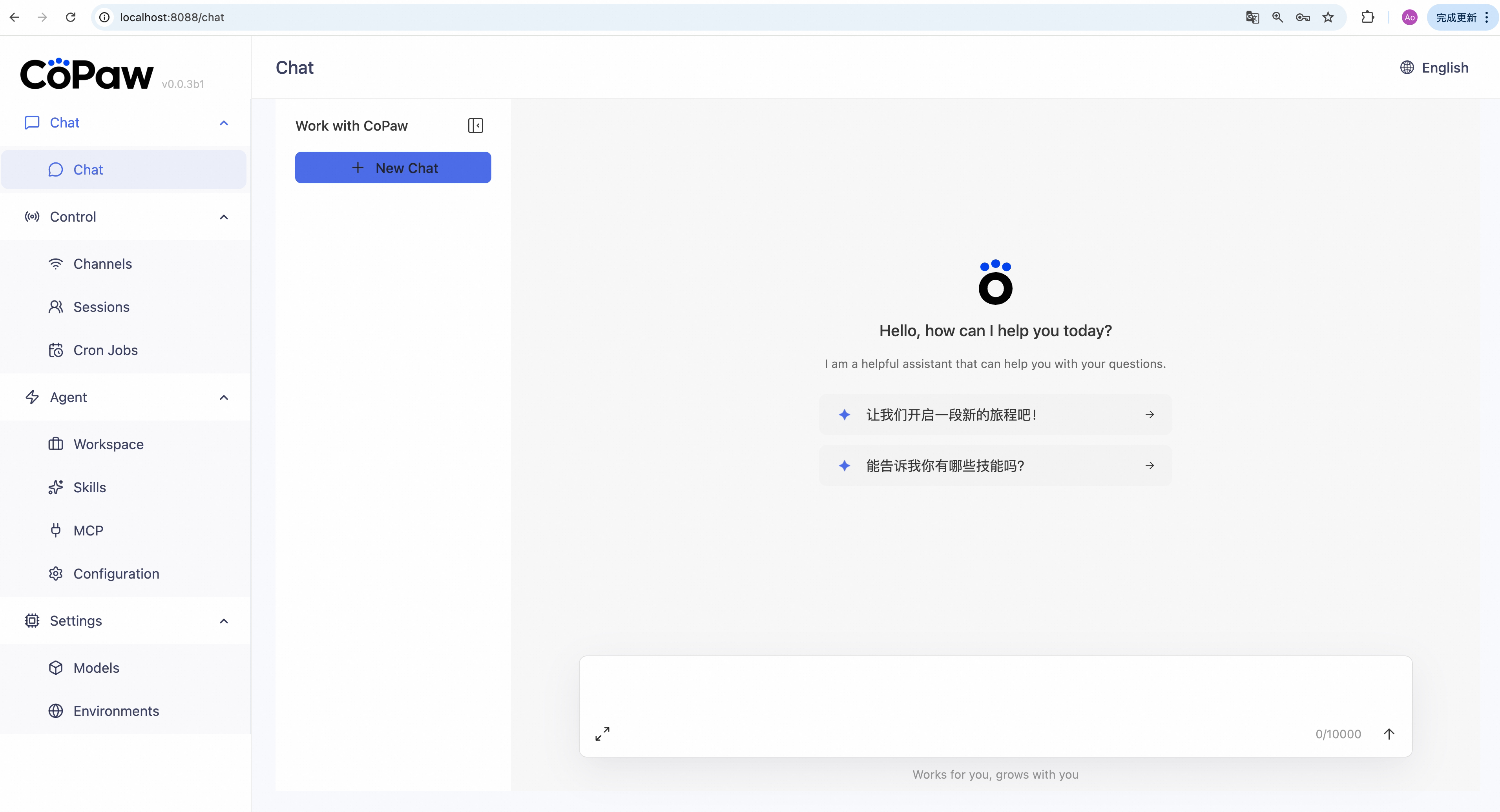
Then open http://127.0.0.1:8088/ in your browser for the Console (chat with CoPaw, configure the agent). To talk in DingTalk, Feishu, QQ, etc., add a channel in the docs.
No Python required — the installer handles everything:
macOS / Linux:
curl -fsSL https://copaw.agentscope.io/install.sh | bash
Windows (PowerShell):
irm https://copaw.agentscope.io/install.ps1 | iex
Then open a new terminal and run:
copaw init --defaults   # or: copaw init (interactive)
copaw app
Install options
macOS / Linux:
# Install a specific version
curl -fsSL ... | bash -s -- --version 0.0.2

# Install from source (dev/testing)
curl -fsSL ... | bash -s -- --from-source

# With local model support
bash install.sh --extras llamacpp    # llama.cpp (cross-platform)
bash install.sh --extras mlx         # MLX (Apple Silicon)
bash install.sh --extras llamacpp,mlx

# Upgrade — just re-run the installer
curl -fsSL ... | bash

# Uninstall
copaw uninstall          # keeps config and data
copaw uninstall --purge  # removes everything
Windows (PowerShell):
# Install a specific version
irm ... | iex; .\install.ps1 -Version 0.0.2

# Install from source (dev/testing)
.\install.ps1 -FromSource

# With local model support
.\install.ps1 -Extras llamacpp      # llama.cpp (cross-platform)
.\install.ps1 -Extras mlx           # MLX
.\install.ps1 -Extras llamacpp,mlx

# Upgrade — just re-run the installer
irm ... | iex

# Uninstall
copaw uninstall          # keeps config and data
copaw uninstall --purge  # removes everything
docker pull agentscope/copaw:latest
docker run -p 8088:8088 -v copaw-data:/app/working agentscope/copaw:latest
Then open http://127.0.0.1:8088/ for the Console. Config, memory, and skills are stored in the copaw-data volume. To pass API keys (e.g. DASHSCOPE_API_KEY), add -e VAR=value or --env-file .env to docker run.
The image is built from scratch. To build the image yourself, please refer to the Build Docker image section in scripts/README.md, and then push to your registry.
No local install? ModelScope Studio one-click cloud setup. Set your Studio to non-public so others cannot control your CoPaw.
To run CoPaw on Alibaba Cloud (ECS), use the one-click deployment: open the CoPaw on Alibaba Cloud (ECS) deployment link and follow the prompts. For step-by-step instructions, see Alibaba Cloud Developer: Deploy your AI assistant in 3 minutes.
If you use a cloud LLM (e.g. DashScope, ModelScope), you must set an API key before chatting. CoPaw will not work until a valid key is configured.
Where to set it:
copaw init— When you runcopaw init, the command has a step to configure the LLM provider and API key. Follow the prompts to choose a provider and enter your key.- Console — After
copaw app, open http://127.0.0.1:8088/ → Settings → Models. Select a provider, fill in the API Key field, then activate that provider and model. - Environment variable — For DashScope you can set
DASHSCOPE_API_KEYin your shell or in a.envfile in the working directory.
Tools that need extra keys (e.g. TAVILY_API_KEY for web search) can be set in Console Settings → Environment variables, or see Config for details.
Using local models only? If you use Local Models (llama.cpp or MLX), you do not need any API key.
CoPaw can run LLMs entirely on your machine — no API keys or cloud services required.
| Backend | Best for | Install |
|---|---|---|
| llama.cpp | Cross-platform (macOS / Linux / Windows) | pip install 'copaw[llamacpp]' |
| MLX | Apple Silicon Macs (M1/M2/M3/M4) | pip install 'copaw[mlx]' |
After installing, download a model and start chatting:
copaw models download Qwen/Qwen3-4B-GGUF
copaw models # select the downloaded model
copaw app # start the server
You can also download and manage local models from the Console UI.
| Topic | Description |
|---|---|
| Introduction | What CoPaw is and how you use it |
| Quick start | Install and run (local or ModelScope Studio) |
| Console | Web UI for chat and agent config |
| Channels | DingTalk, Feishu, QQ, Discord, iMessage, and more |
| Heartbeat | Scheduled check-in or digest |
| Local Models | Run models locally with llama.cpp or MLX |
| CLI | Init, cron jobs, skills, clean |
| Skills | Extend and customize capabilities |
| FAQ | Common questions and troubleshooting tips |
| Memory | Context management and long-term memory |
| Config | Working directory and config file |
Full docs in this repo: website/public/docs/.
git clone https://github.com/agentscope-ai/CoPaw.git
cd CoPaw
pip install -e .
- Dev (tests, formatting):
pip install -e ".[dev]" - Console (build frontend):
cd console && npm ci && npm run build, thencopaw appfrom project root.
CoPaw represents both a Co Personal Agent Workstation and a "co-paw"—a partner always by your side. More than just a cold tool, CoPaw is a warm "little paw" always ready to lend a hand (or a paw!). It is the ultimate teammate for your digital life.
AgentScope team · AgentScope · AgentScope Runtime · ReMe
| Discord | DingTalk |
|---|---|
 |  |
CoPaw is released under the Apache License 2.0.
