.png)
🪐 Generate, deploy, and host your full-stack Web applications, mini-programs, databases, and backend services with AI IDE in one click—no DevOps required, launch your ideas at lightning speed 💫
🌍 Languages: 中文 | English










When coding in AI programming tools like Cursor/VSCode GitHub Copilot/WindSurf/CodeBuddy/Augment Code/Claude Code, it automatically helps you generate deployable full-stack applications + mini-programs and publish them to Tencent CloudBase with one-click.
📚 Quick Start | 🛠️ IDE Setup | 🎨 Project Templates | 📖 Development Guide | 🎮 Use Cases | 🎓 Tutorials | 🔧 MCP Tools | ❓ FAQ
📹 Complete Video Demo ⬇️
| 🚀 Core Capabilities | 🛠️ Supported Platforms |
|---|---|
| 🤖 AI-Powered Development: AI auto-generates code and architecture ☁️ Cloud Integration: One-click access to database, cloud functions, static hosting ⚡ Rapid Deployment: Full-stack apps online in minutes | Web Apps: Modern frontend + static hosting WeChat Mini-Programs: Cloud-native mini-program solutions Backend Services: Cloud database + serverless functions + cloud hosting |
- 🤖 AI-Native - Rule library designed for AI programming tools, generates code following CloudBase best practices
- 🚀 One-Click Deploy - MCP automated deployment to Tencent CloudBase platform, Serverless architecture without server management
- 📱 Full-Stack Apps - Web + Mini-programs + Database + Backend integration, supports multiple app types and backend hosting
- 🔧 Smart Debugging - AI automatically reviews logs and fixes issues, reducing operational costs
- ⚡ Lightning Fast - Domestic CDN acceleration, faster access than overseas platforms
- 📚 Knowledge Retrieval - Built-in intelligent vector search for CloudBase and WeChat Mini-Program professional knowledge bases
Install AI Development Tools
Such as Cursor | WindSurf | CodeBuddy etc. Click to see list of supported AI development tools
Set Up CloudBase Environment
Visit Tencent CloudBase Console to create an environment. New users can start for free.
Install Node.js v18 or Higher
Make sure Node.js v18 or higher is installed on your computer. You can download and install the latest version from Node.js official website.
Optional: Set npm Registry
To improve dependency download speed, it's recommended to set npm registry to Tencent mirror. You can run the following command in terminal:
npm config set registry https://mirrors.cloud.tencent.com/npm/
This speeds up dependency downloads, especially in mainland China.
Optional: Clear npx Cache
Due to a caching bug in npx itself, it may cause CloudBase AI ToolKit installation issues. You can try clearing the npx cache.Run the following command in terminal:
npx -y clear-npx-cache
We've prepared project templates with built-in CloudBase best practices and AI IDE rules. Two recommended approaches:
Choose a suitable template and initialize with one click:
-
WeChat Mini-Program + CloudBase Template
Download Package | Source Code -
React Web App + CloudBase Template
Download Package | Source Code -
Vue Web App + CloudBase Template
Download Package | Source Code -
UniApp Cross-Platform + CloudBase Template
Download Package | Source Code -
AI Rules Universal CloudBase Template: Language and framework agnostic, includes CloudBase AI rules and MCP, suitable for any CloudBase project
If you already have a project, after configuring MCP, simply tell the AI "Download CloudBase AI rules in the current project" to instantly download and configure AI editor rules in your project directory—no manual operations needed.
TIP
Tip: If you're using a template project, all configurations are pre-configured. Please follow the guide to check and enable tools. If not starting from a template, you need to manually add the corresponding configurations according to the specific instructions:
The following tools all support CloudBase AI ToolKit. Choose the appropriate tool and configure according to instructions:
| Tool | Platform |
|---|---|
| Cursor | Standalone IDE |
| WindSurf | Standalone IDE, VSCode, JetBrains plugin |
| CodeBuddy | VS Code, JetBrains, WeChat DevTools plugin |
| CLINE | VS Code plugin |
| GitHub Copilot | VS Code plugin |
| Trae | Standalone IDE |
| Tongyi Lingma | Standalone IDE, VS Code, JetBrains plugin |
| RooCode | VS Code plugin |
| Baidu Comate | VS Code, JetBrains plugin |
| Augment Code | VS Code, JetBrains plugin |
| Claude Code | Command line tool |
🔧 Cursor Configuration
Template includes .cursor/rules/ directory, AI will automatically recognize CloudBase best practices. If not starting from template, you can ask AI to help download CloudBase rules.
TIP
If the tool count remains 0 after installation, please refer to FAQ
If using template project, MCP configuration is pre-configured. Please click the popup window at the bottom left to enable MCP. If not starting from template, click the button below to install in Cursor:

Or manually add configuration to .cursor/mcp.json:
{
  "mcpServers": {
    "cloudbase-mcp": {
      "command": "npx",
      "args": ["-y", "@cloudbase/cloudbase-mcp@latest"]
    }
  }
}
Then click the ⚙️ icon in the top-right corner of Cursor client, go to "MCP" settings, find cloudbase and enable it.
Use Agent mode in the chat window for code generation and automation.
🌊 Codeium/WindSurf Configuration
Template's .windsurf/ directory contains configurations optimized for WindSurf. If not starting from template, you can ask AI to help download CloudBase rules.
TIP
If the tool count remains 0 after installation, please refer to FAQ
If using template project, MCP configuration is pre-configured. If not starting from template, add in WindSurf's Plugins configuration:
{
  "mcpServers": {
    "cloudbase-mcp": {
      "command": "npx",
      "args": ["-y", "@cloudbase/cloudbase-mcp@latest"]
    }
  }
}
Switch to Write mode in chat for intelligent generation.
👥 CodeBuddy Configuration
Template includes .rules/ directory, CodeBuddy will automatically recognize CloudBase best practices. If not starting from template, you can ask AI to help download CloudBase rules.
TIP
If the tool count remains 0 after installation, please refer to FAQ
-
You can click the MCP button in the top-right corner of CodeBuddy, search for CloudBase in the MCP marketplace, and click install.
-
Or manually add: click the MCP button in the top-right corner of CodeBuddy, click add on the right, and add CloudBase MCP in the MCP configuration:
{
  "mcpServers": {
    "cloudbase": {
      "command": "npx",
      "args": ["-y", "@cloudbase/cloudbase-mcp@latest"]
    }
  }
}
Switch to Craft mode in the chat window. It's recommended to disable the confirm plan feature in the right settings for a smoother experience.
🤖 CLINE Configuration
Template includes .clinerules/ directory, AI will automatically recognize CloudBase best practices. If not starting from template, you can ask AI to help download CloudBase rules.
TIP
If the tool count remains 0 after installation, please refer to FAQ
If using template project, MCP configuration is pre-configured. If not starting from template, add in MCP Server configuration:
{
  "mcpServers": {
    "cloudbase": {
      "autoApprove": [],
      "timeout": 60,
      "command": "npx",
      "args": [
        "@cloudbase/cloudbase-mcp@latest"
      ],
      "transportType": "stdio",
      "disabled": false
    }
  }
}
It's recommended to use models that support code generation and function calls.
🐙 GitHub Copilot Configuration
Template's .github/ directory contains Copilot optimized configurations. If not starting from template, you can ask AI to help download CloudBase rules.
TIP
If the tool count remains 0 after installation, please refer to FAQ
If using template project, MCP configuration is pre-configured. If not starting from template, add in .vscode/mcp.json:
{
    "servers": {
        "cloudbase": {
            "command": "npx",
            "args": [
                "@cloudbase/cloudbase-mcp@latest"
            ]
        }
    }
}
Switch to Agent mode in the bottom-left corner of the chat window.
🎯 Trae Configuration
This guide supports both Trae international and Trae CN versions. It's recommended to test with Claude/DeepSeek V3 0324 models.
Template's .trae/rules directory contains CloudBase rule configurations for Trae. If not starting from template, you can ask AI to help download CloudBase rules.
TIP
If the tool count remains 0 after installation, please refer to FAQ
Add in Trae's MCP configuration:
{
  "mcpServers": {
    "cloudbase-mcp": {
      "command": "npx",
      "args": ["-y", "@cloudbase/cloudbase-mcp@latest"]
    }
  }
}
Select Builder with MCP in the agent for chat.
🧩 Tongyi Lingma Configuration
Template includes .lingma/ directory, Tongyi Lingma will automatically recognize CloudBase best practices. If not starting from template, you can ask AI to help download CloudBase rules.
TIP
If the tool count remains 0 after installation, please refer to FAQ
If using template project, MCP configuration is pre-configured. If not starting from template, add in MCP configuration:
{
  "mcpServers": {
    "cloudbase-mcp": {
      "command": "npx",
      "args": ["-y", "@cloudbase/cloudbase-mcp@latest"]
    }
  }
}
Switch to agent mode in the bottom-left corner of the chat window.
🤖 RooCode Configuration
Template includes .roo/rules directory, RooCode will automatically recognize CloudBase best practices. If not starting from template, you can ask AI to help download CloudBase rules.
TIP
If the tool count remains 0 after installation, please refer to FAQ
If using template project, MCP configuration is pre-configured. If not starting from template, add in MCP configuration:
{
    "mcpServers": {
        "cloudbase": {
            "command": "npx",
            "args": [
                "@cloudbase/cloudbase-mcp@latest"
            ],
            "disabled": false
        }
    }
}
Use the chat window for code generation and automation.
🤖 Baidu Comate Configuration
Template includes .comate/rules directory, Baidu Comate will automatically recognize CloudBase best practices. If not starting from template, you can ask AI to help download CloudBase rules.
TIP
If the tool count remains 0 after installation, please refer to FAQ
If using template project, MCP configuration is pre-configured. If not starting from template, add in MCP configuration:
{
    "mcpServers": {
        "cloudbase": {
            "command": "npx",
            "args": [
                "@cloudbase/cloudbase-mcp@latest"
            ],
            "disabled": false
        }
    }
}
Use Agent mode in the chat window for intelligent code generation and automation.
🚀 Augment Code Configuration
Template includes .augment-guidelines file, Augment Code will automatically recognize CloudBase best practices. If not starting from template, you can ask AI to help download CloudBase rules.
If using template project, MCP configuration is pre-configured (built into .vscode/settings.json). If not starting from template, add CloudBase MCP in Augment's MCP configuration, refer to documentation:
{
  "augment.advanced": {
     "mcpServers": {
        "cloudbase": {
            "command": "npx",
            "args": [
                "@cloudbase/cloudbase-mcp@latest"
            ]
        }
    }
  }
}
Use Agent mode in the chat window for intelligent code generation and automation.
🤖 Claude Code Configuration
Template includes CLAUDE.md file, Claude Code will automatically recognize CloudBase best practices. If not starting from template, you can ask AI to help download CloudBase rules.
TIP
If the tool count remains 0 after installation, please refer to FAQ
If using template project, MCP configuration is pre-configured. If not starting from template, create .mcp.json file in project root:
{
  "mcpServers": {
    "cloudbase": {
      "command": "npx",
      "args": [
        "-y",
        "@cloudbase/cloudbase-mcp@latest"
      ]
    }
  }
}
Chat directly with AI in Claude Code for intelligent code generation and automation.
🔹 Gemini CLI Configuration
Make sure Node.js 18+ is installed, then install Gemini CLI globally:
npm install -g @google/gemini-cli
Or run directly:
npx @google/gemini-cli
On first run, log in with your personal Google account to get free quota (60 requests per minute, 1000 requests per day).
TIP
If the tool count remains 0 after installation, please refer to FAQ
If using template project, MCP configuration is pre-configured.
If not starting from template, create .gemini/settings.json file in user home directory (~) or project directory:
{
  "mcpServers": {
    "cloudbase-mcp": {
      "command": "npx",
      "args": ["-y", "@cloudbase/cloudbase-mcp@latest"]
    }
  }
}
Template project root already includes GEMINI.md file with CloudBase development rules.
If it's an existing project, tell the AI in Gemini CLI:
Download CloudBase AI rules in current project
Launch Gemini CLI:
gemini
Then tell the AI:
Login to CloudBase
Common Commands:
/tools- View available tools/mcp- View MCP server status/memory show- View current rules!command- Execute Shell command
🔄 Update CloudBase AI ToolKit
Update AI Rules
If you want to update to the latest CloudBase AI rules in an existing project, simply tell the AI:
Download CloudBase AI rules
AI will automatically download and update the latest rule configurations to your project directory.
Update MCP Tools
When new versions of MCP tools are released, you can update through:
-
Auto Update (Recommended): In your AI development tool's MCP list, find cloudbase-mcp and re-enable or refresh the MCP list to automatically install the latest version
-
Manual Update: If auto update doesn't work, you can disable and re-enable cloudbase-mcp, or restart your AI IDE
Since the MCP configuration uses the @latest tag, it usually automatically gets the latest version.
Before starting, simply tell the AI:
Login to CloudBase
AI will automatically open the Tencent Cloud login interface and CloudBase environment selection.
If you need to switch environments later, you can say:
Logout from CloudBase
AI will clean up local configurations, and you can then ask AI to login to CloudBase again for re-login.
After successful login, you can confirm AI is connected to CloudBase:
Query current CloudBase environment information
Describe your requirements to AI for development:
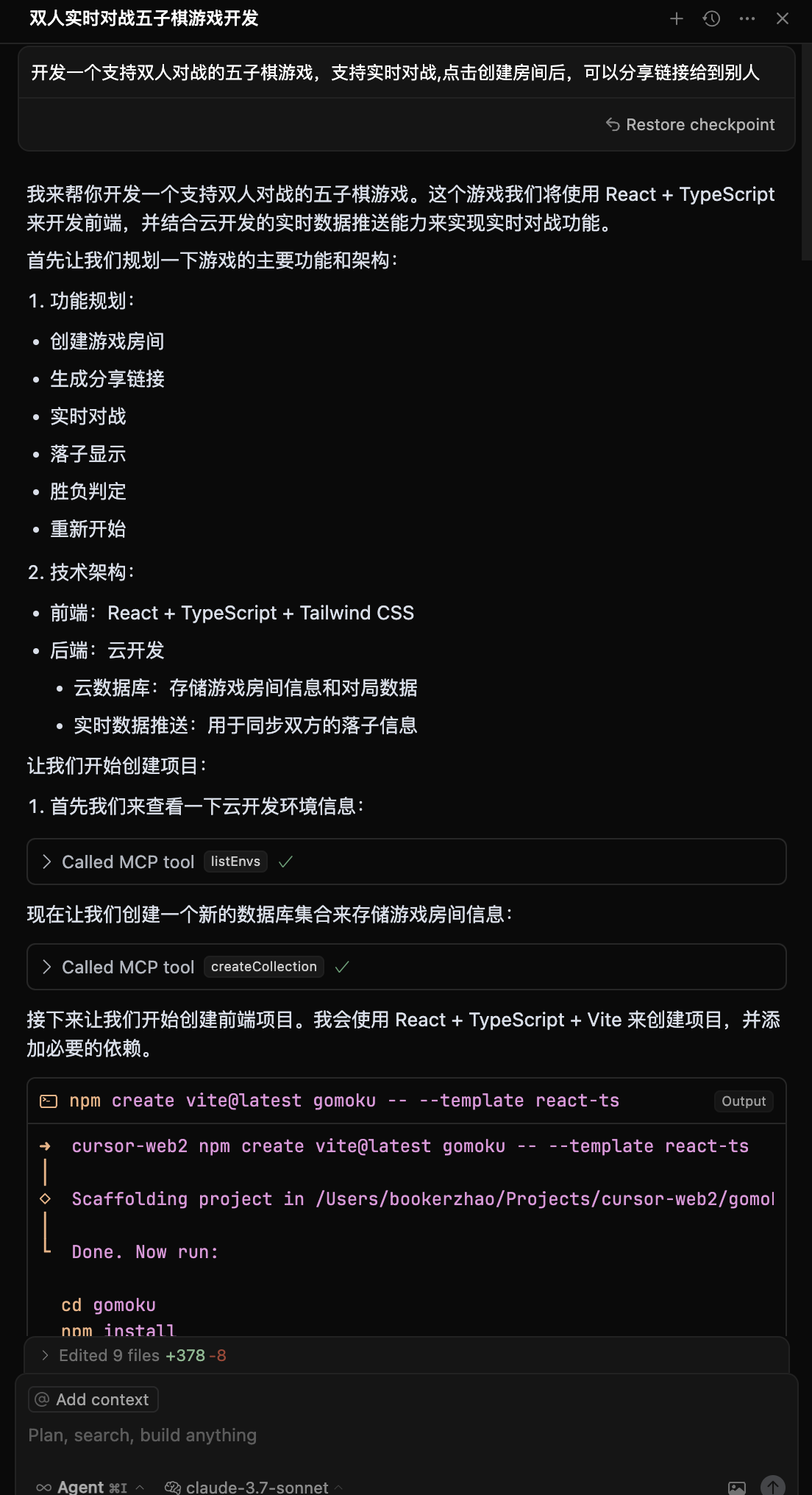
Create a two-player online Gomoku website with multiplayer battles, then deploy it
AI will automatically:
- 📝 Generate frontend and backend code
- 🚀 Deploy to CloudBase
- 🔗 Return online access link
If you encounter errors during development, you can send the error information to AI for troubleshooting:
Got an error, the error is xxxx
You can also ask AI to debug and modify code using cloud function logs:
Cloud function code doesn't meet requirements, requirement is xxx, please check logs and data for debugging and fixing
Development Process:
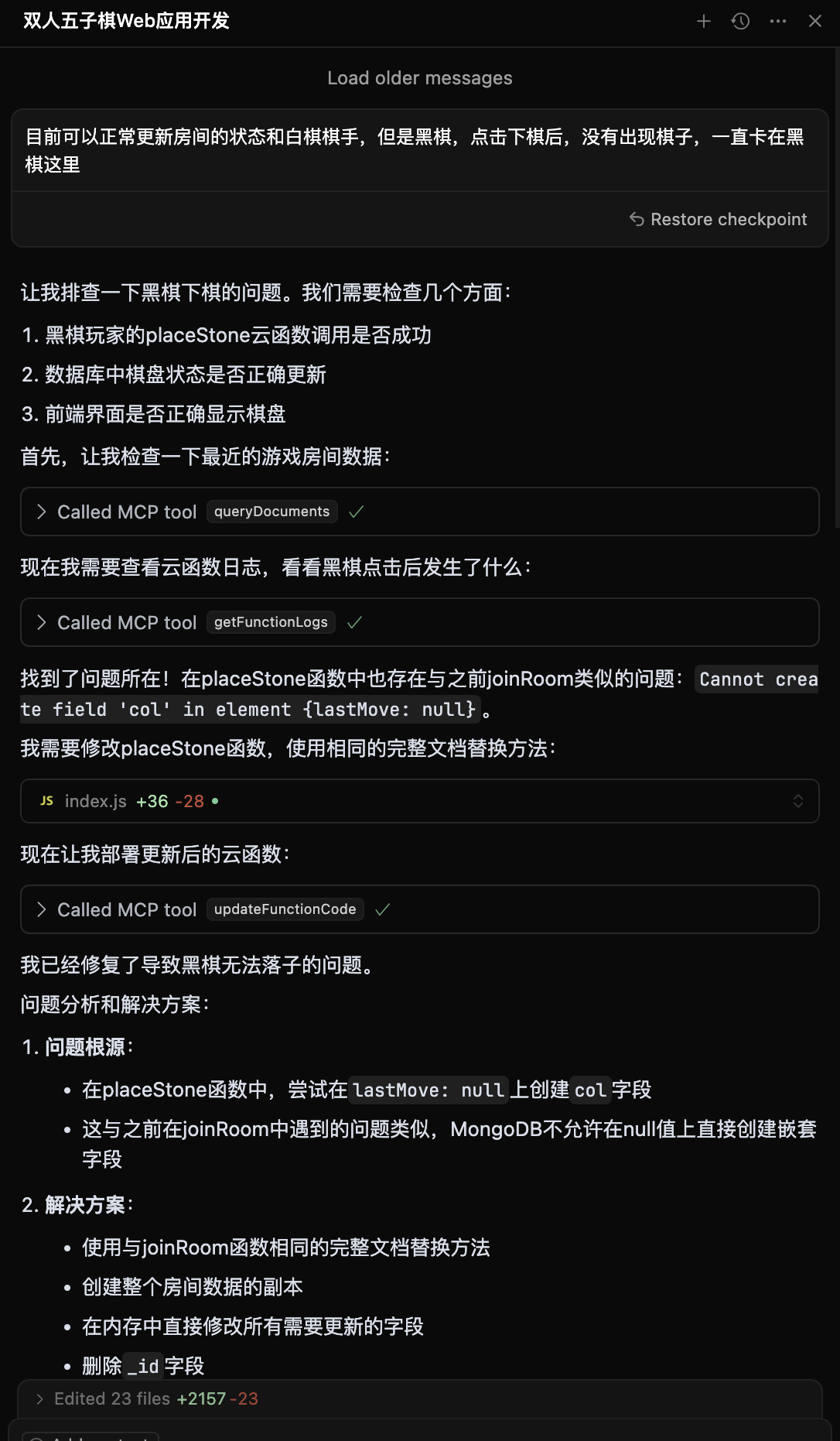
- Input requirement: "Create a two-player online Gomoku website with multiplayer battles"
- AI generates: Web app + cloud database + real-time data push
- Auto deploy and get access link
👉 Experience: Gomoku Game
📸 View Development Screenshots
| Development Process | Final Result |
|---|---|
 | 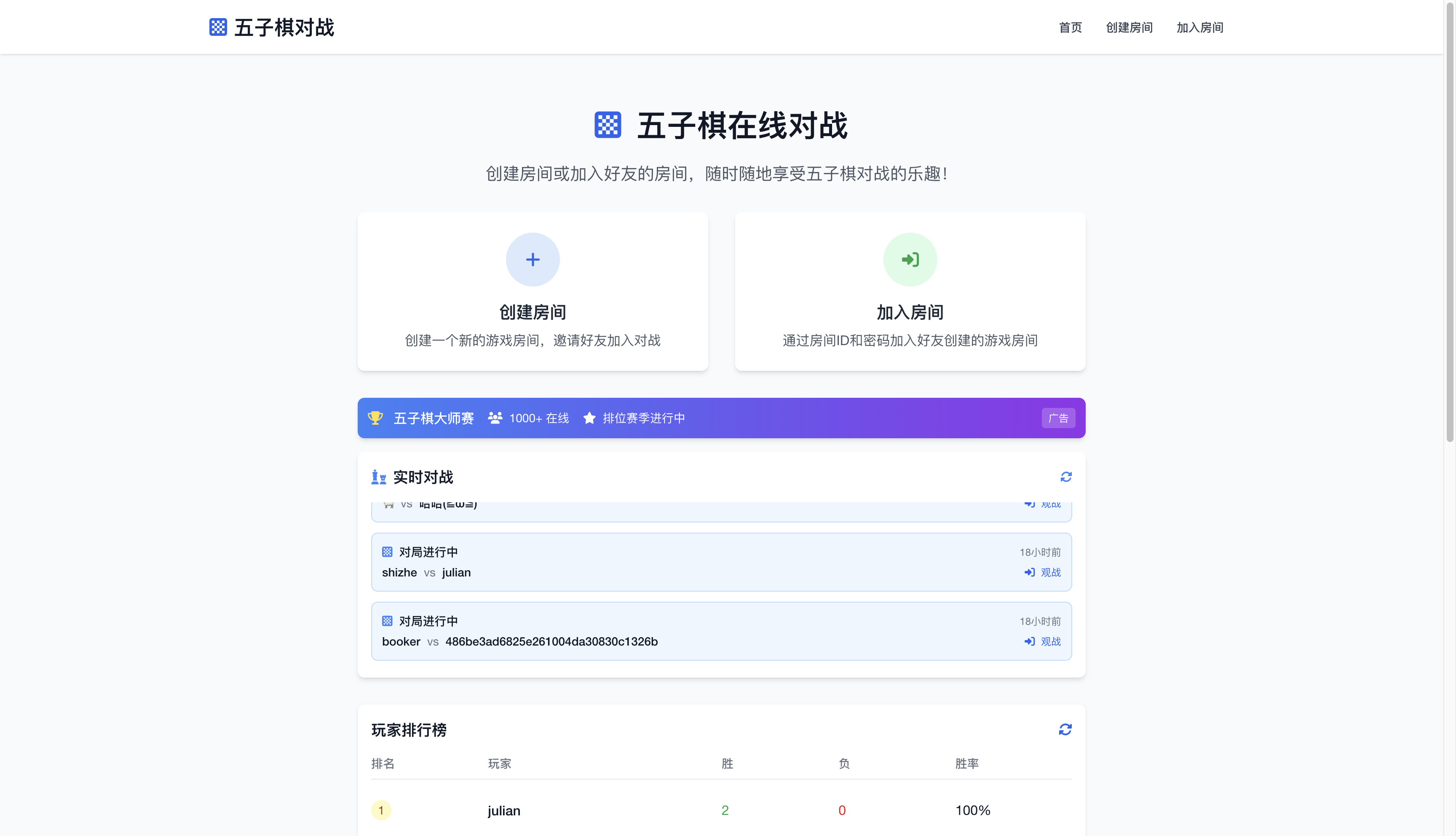 |
 | Supports two-player online battles Real-time game synchronization |
Development Process:
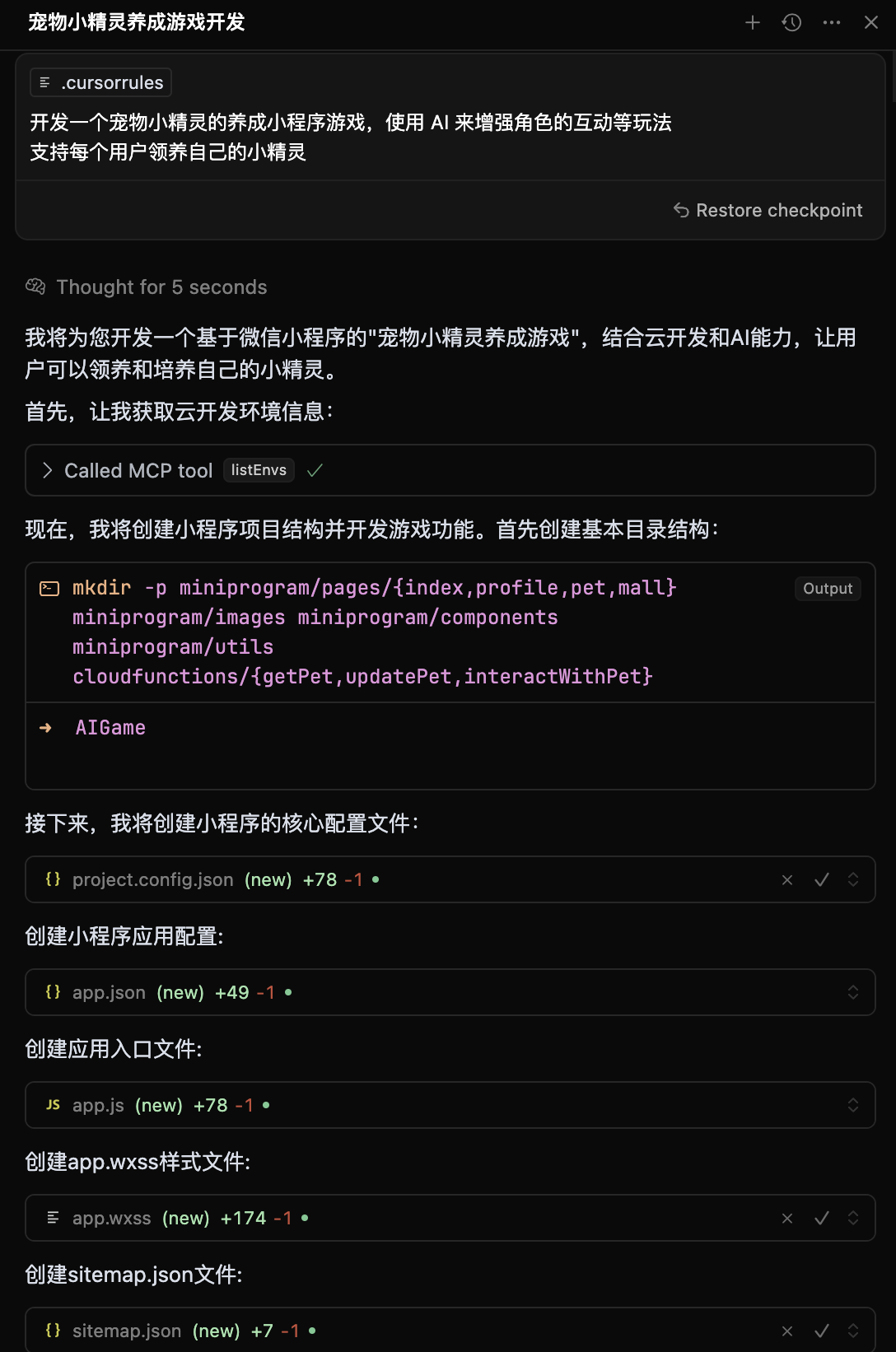
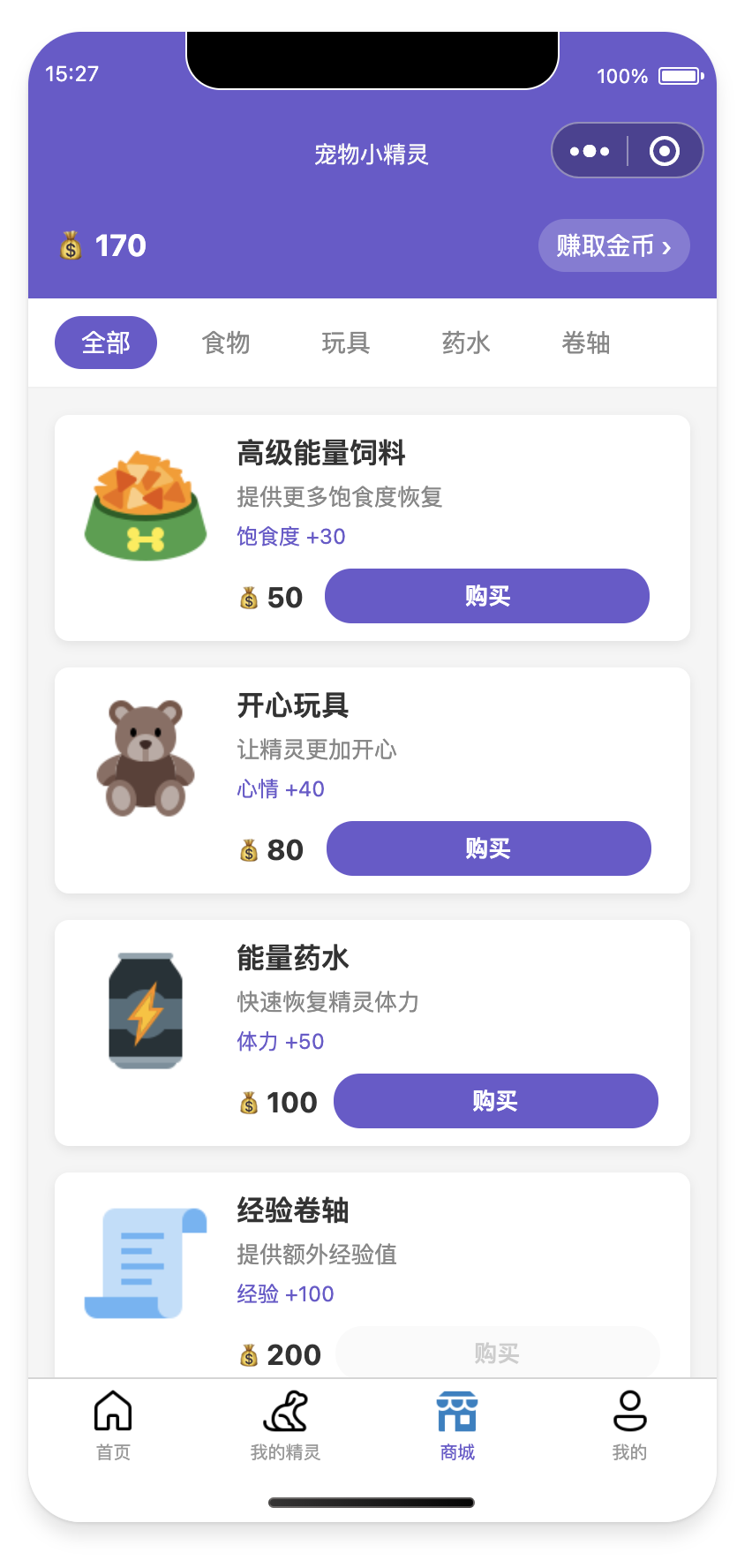
- Input: "Develop a Pokemon pet raising wechat mini-program with AI-enhanced interactions"
- AI generates: Mini-program + cloud database + AI cloud functions
- Import into WeChat DevTools for publishing
📸 View Development Screenshots and Mini-Program Preview
🖥️ Development Screenshots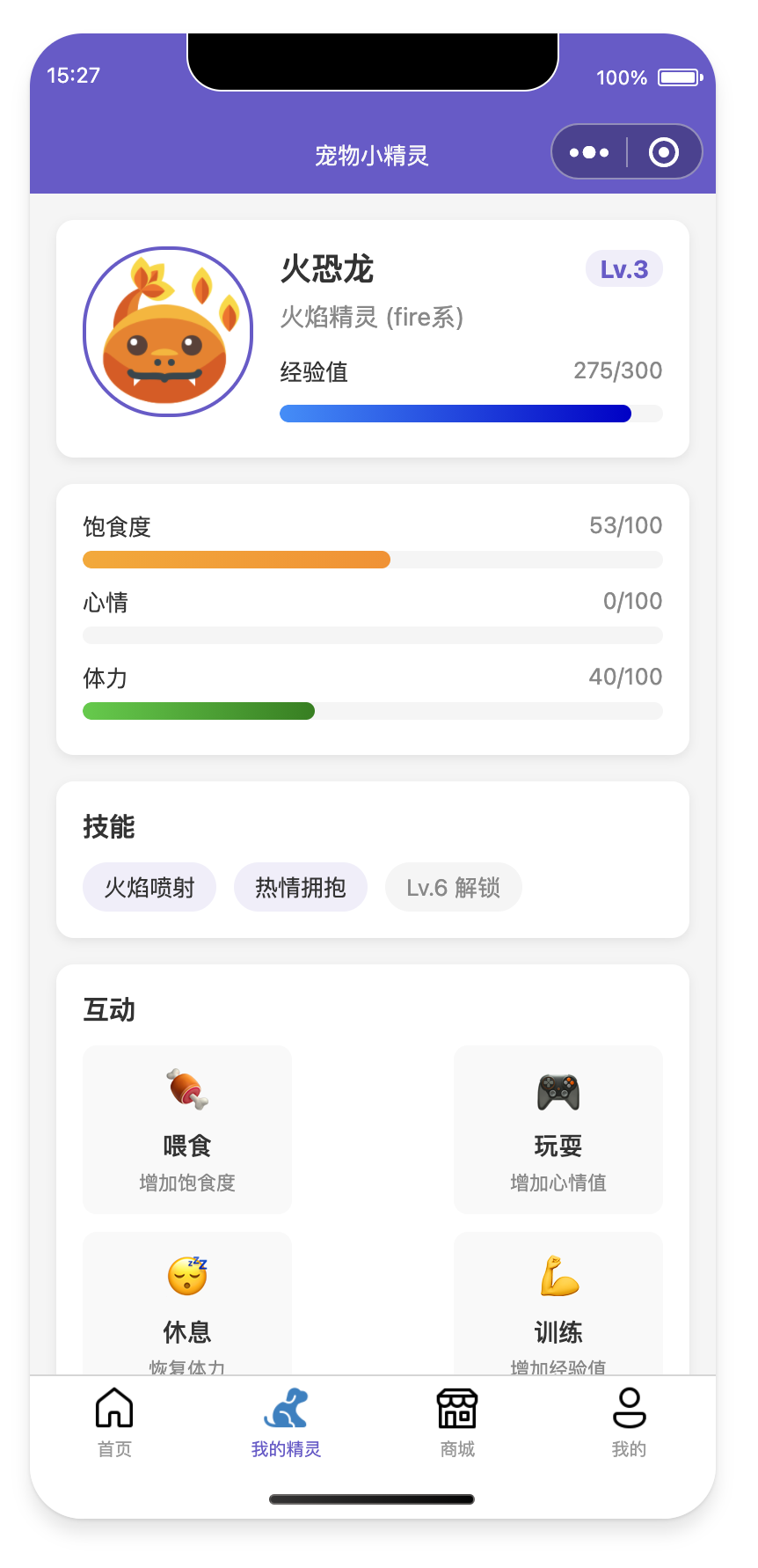
|
📱 Mini-Program Preview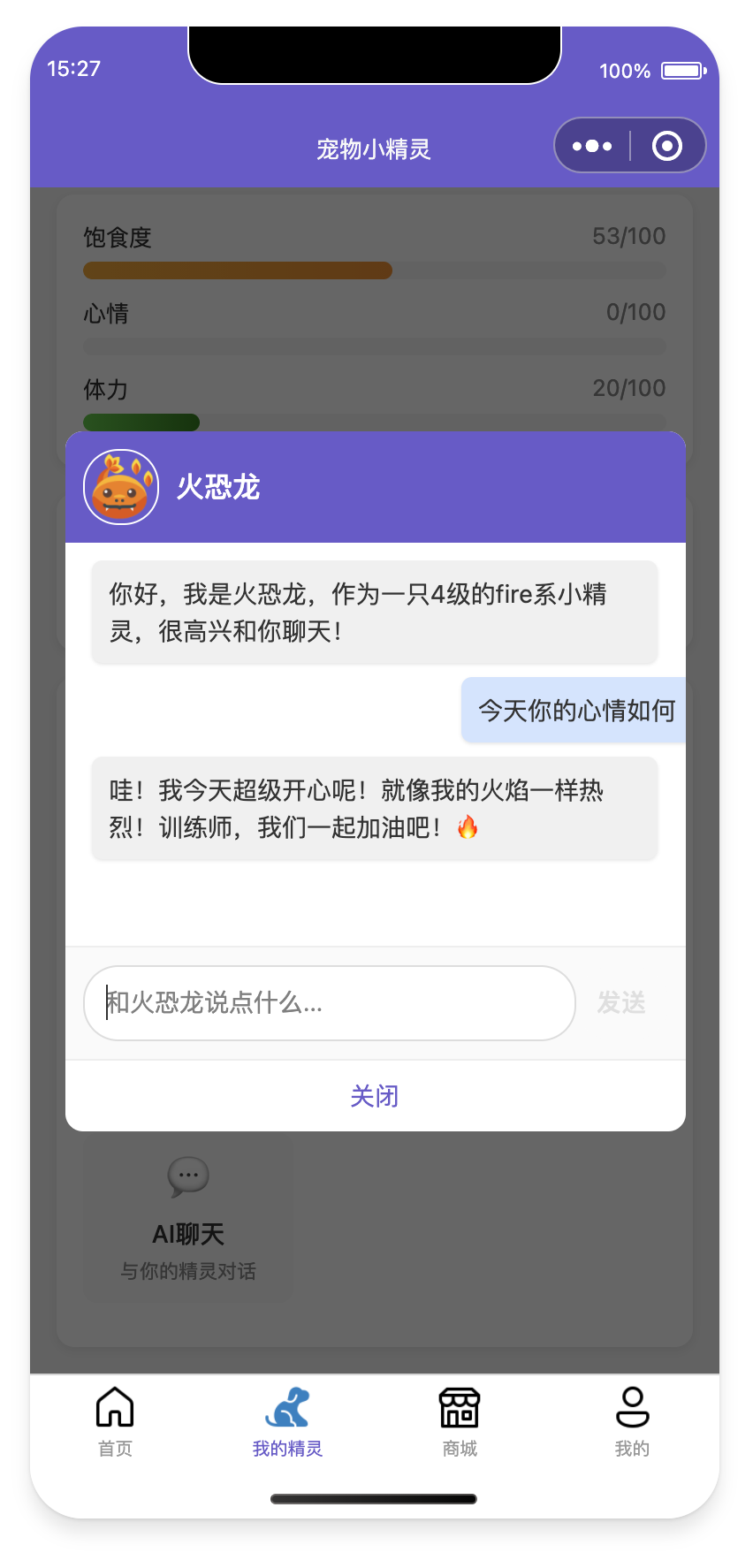
📲 Experience QR Code 
|
When applications have issues:
- AI automatically checks cloud function logs
- Analyzes error causes and generates fix code
- Auto redeploy
📸 View Intelligent Diagnosis Process
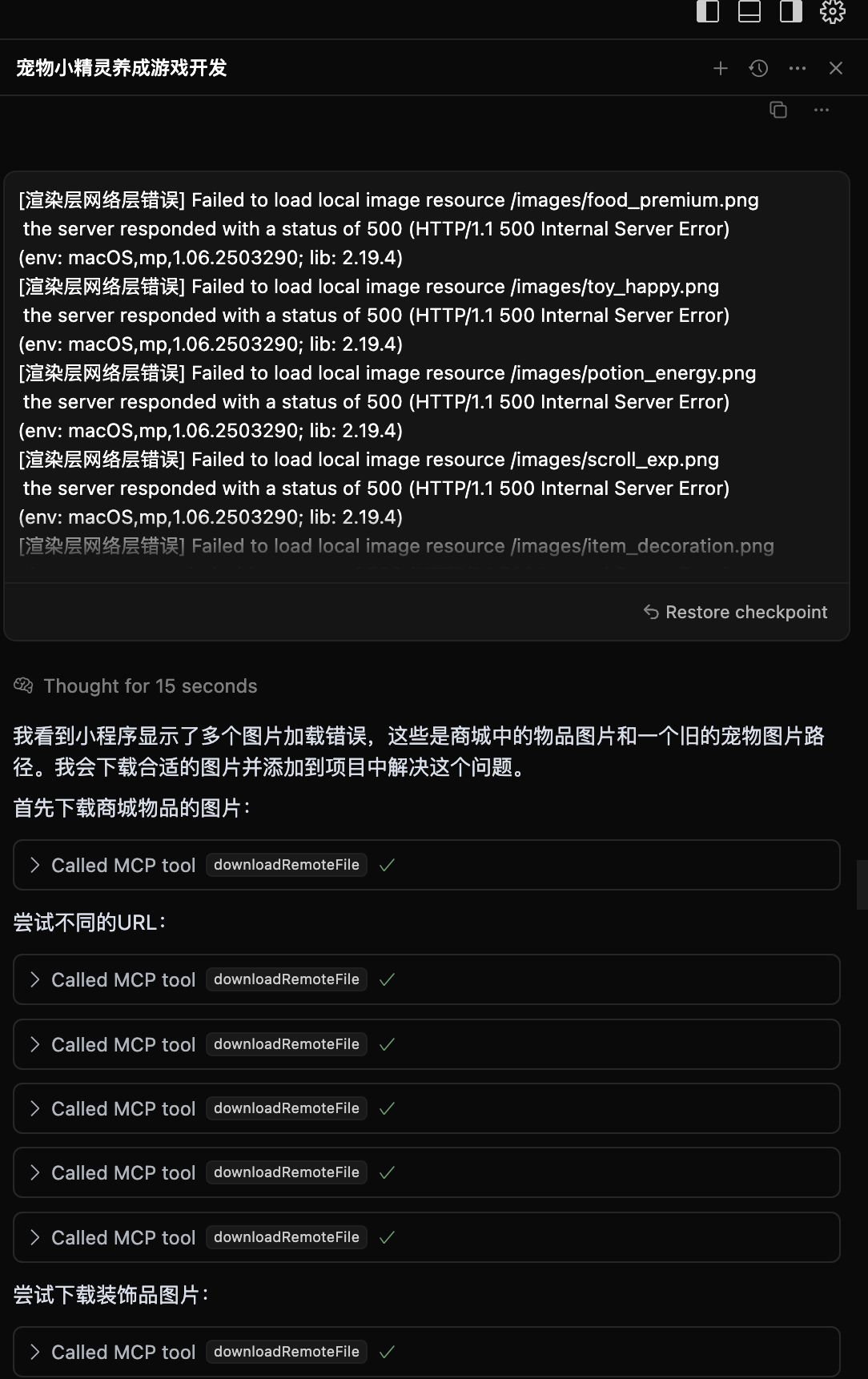
AI automatically analyzes logs and generates fix solutions
- ⚡ Lightning Deploy: Domestic nodes, faster access than overseas
- 🛡️ Stable & Reliable: Serverless platform chosen by 3.3 million developers
- 🔧 Developer Friendly: Full-stack platform designed for AI era, supports auto environment configuration
- 💰 Cost Optimized: Serverless architecture more elastic, new users can experience for free during development
For common questions about migration, integration, etc., please check FAQ.
Having issues or want to share experiences? Join our tech community!

Scan to join WeChat tech community
In the group you can:
- 💡 Share your AI + CloudBase projects
- 🤝 Tech discussions and development Q&A
- 📢 Get latest feature updates and best practices
- 🎯 Participate in product feature discussions and suggestions
| Platform | Link | Description |
|---|---|---|
| Official Docs | 📖 View Docs | Complete CloudBase documentation |
| Issue Feedback | 🐛 Submit Issues | Bug reports and feature requests |
- Weekly Tech Sharing: Regular sharing of AI + CloudBase best practices in the group
- Project Showcase: Show off your amazing AI-developed projects
- Q&A Sessions: Tencent CloudBase team members answer questions online
- Feature Preview: First access to latest features
Currently includes 35 tools covering environment management, database operations, cloud function management, static hosting, and other core functions.
📋 Complete Tool Documentation: View MCP Tools Detailed Documentation | View Tool Specifications JSON
| Category | Tool Count | Main Functions |
|---|---|---|
| 🌍 Environment Management | 4 | Login authentication, environment info query, domain management |
| 🗄️ Database Operations | 11 | Collection management, document CRUD, index operations, data models |
| ⚡ Cloud Functions | 9 | Function creation, updates, invocation, logs, triggers |
| 🌐 Static Hosting | 5 | File upload management, domain configuration, website deployment |
| 📁 File Operations | 2 | Remote file download, cloud storage upload |
| 🛠️ Tool Support | 3 | Project templates, knowledge base search, interactive dialog |
| 🔌 HTTP Access | 1 | HTTP function access configuration |
| Tool Type | Tool Name | Feature Highlights |
|---|---|---|
| 🔐 Authentication | login / logout | One-click CloudBase login, auto environment selection |
| 📊 Environment Query | envQuery | 🔄 Merged Tool - Environment list, info, domains unified query |
| 🗄️ Database | collectionQuery | 🔄 Merged Tool - Collection existence, details, list unified management |
| ⚡ Cloud Functions | createFunction | Supports complete configuration, auto dependency installation, trigger setup |
| 🌐 Static Hosting | uploadFiles | Batch file upload, smart ignore rules, CDN acceleration |
| 🧠 AI Enhancement | searchKnowledgeBase | Vector search CloudBase knowledge base, intelligent Q&A support |
We optimized from 40 tools to 35 by merging related functions for better user experience.
🔗 Want to learn about each tool's detailed functions? Please check Complete MCP Tools Documentation
To improve product experience, CloudBase AI ToolKit collects anonymous usage statistics:
- Collection Content: Tool usage, basic environment info (OS, Node.js version, etc.)
- Privacy Protection: No code content, file paths, or sensitive info collected, only for product improvement
You can disable data statistics by setting environment variable CLOUDBASE_MCP_TELEMETRY_DISABLED to true
Welcome to submit Issues and Pull Requests! Please check our Contributing Guide to learn how to participate in project development.
MIT © TencentCloudBase
⭐ If this project helps you, please give us a Star!